
How to Specify Registered Email Addresses
This section explains how to specify registered email addresses when sending emails.
Prerequisites
Before sending emails, register email addresses by following Email Address Import for Mail Delivery.
If you have not done so yet, please complete not only email address registration but also the setup of suppression lists, such as bounce and opt-out information, by following Prepare delivery list.
Behavior After Email Address Registration
Email addresses are recorded against user information (user IDs), similar to an address book.
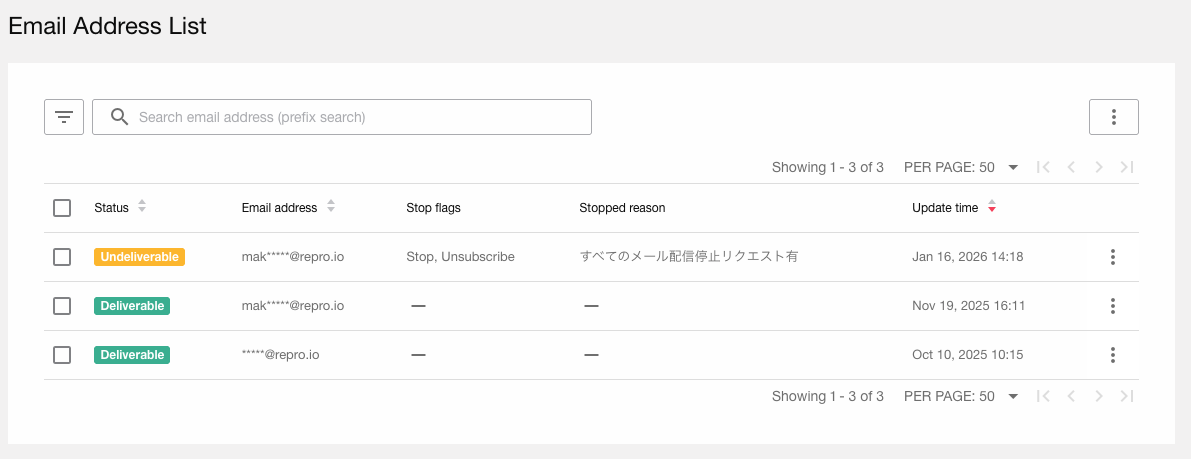
Each registered email address is stored together with the following information.
Status |
Stop Flag |
Description |
|---|---|---|
Deliverable |
— |
All emails can be delivered. |
Undeliverable |
Unsubscribe |
Marketing emails must not be sent based on the user’s request. |
Undeliverable |
Stop |
No emails of any kind will be delivered. |
Undeliverable |
Bounce |
Emails cannot be delivered due to issues with the email address. |
Only email addresses with the Deliverable status are automatically selected and used for delivery.
If the delivery option Send emails to users who have unsubscribed users is enabled, emails will also be delivered to addresses whose stop flag is Unsubscribe only.
Multiple stop flags can be set for a single email address. In addition to Unsubscribe, Stop and Bounce may also be registered.
If you are unsure about the status of an email address or whether it is registered, check it from Settings > Email Settings > Email Address List. (Admin privileges are required.)
How to Specify Email Addresses
When sending emails, specify recipients in Target Users. There is no need to handle email addresses directly.
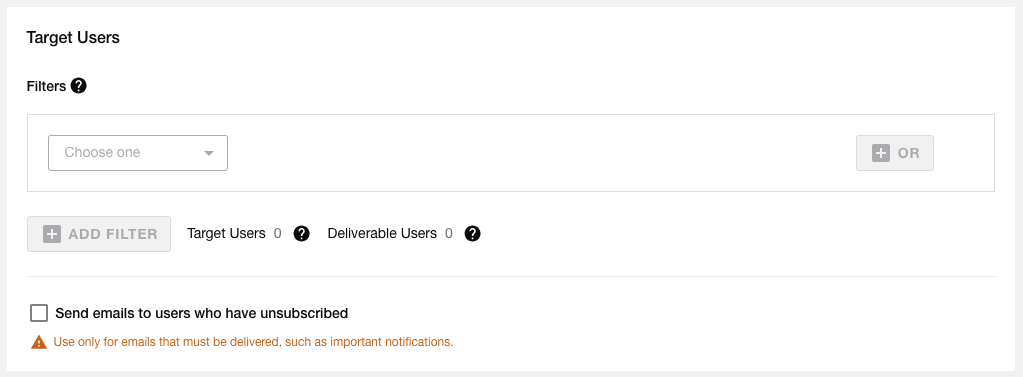
Emails are sent based on user information linked to pre-registered email addresses.
Example: Send daily emails to users whose next reservation is tomorrow
By registering the “Next Reservation Date” in the user profile, only deliverable email addresses of users whose date is set to “tomorrow” are automatically selected based on the delivery date.
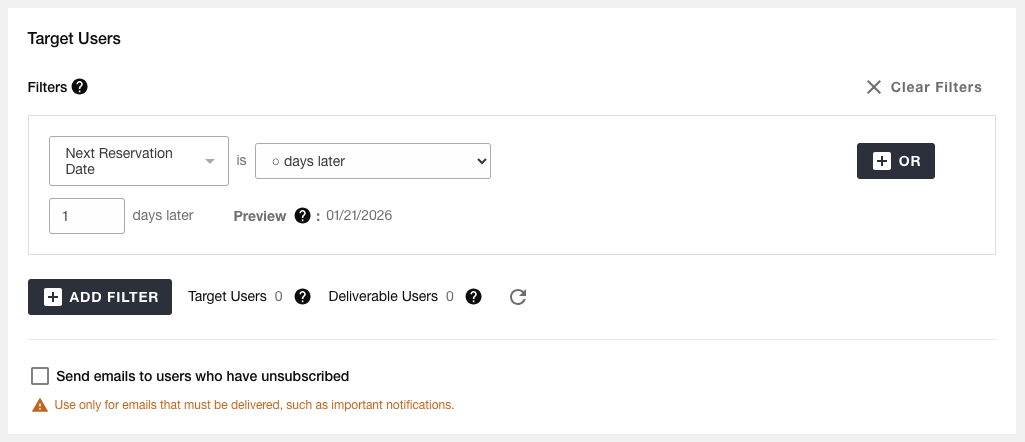
If you are unsure how to configure the audience, please also refer to the following FAQ on the support site.
Sending Emails Using a Specific Email Address List
If you want to send emails using a specific list of email addresses, create a list using user IDs and use an imported audience.
Reference: Support Site — Create and Update Audiences by Import