
Content Block
Content Block lets you define a section that is shared across campaigns as a single part and use it from multiple campaigns. By managing shared parts as content blocks, you can avoid the effort of copying the same content into multiple campaigns and of updating each campaign individually when a change is needed.
Note
Content Block is available only for the email feature.
When the content of a content block is expanded into the body of a campaign, the layout may be misaligned. Before publishing the campaign, use test delivery or a similar method to confirm that it is displayed correctly.
Create a content block
Go to the content block list screen
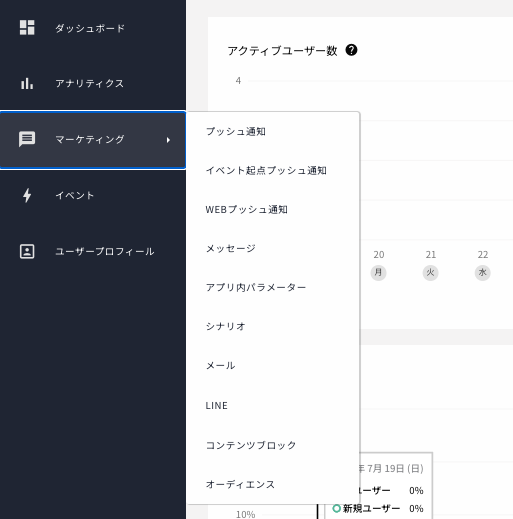
Log in to the admin panel and click [Marketing] > [Content Block] from the side menu.
Create from the content block list screen
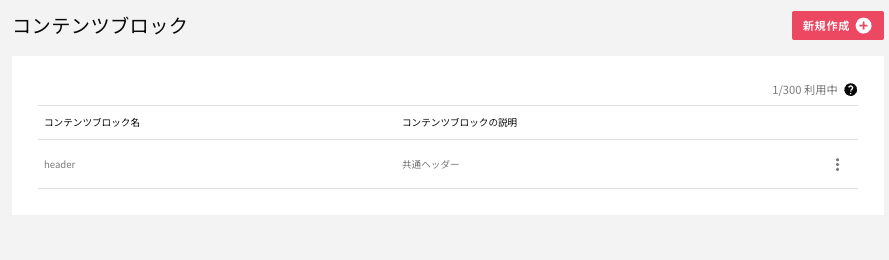
The content block list screen shows the number of content blocks created and the maximum number allowed, along with the name and description of each content block. Click the [New] button to create a new content block.
Note
You can create up to 300 content blocks.
Create the content of the content block
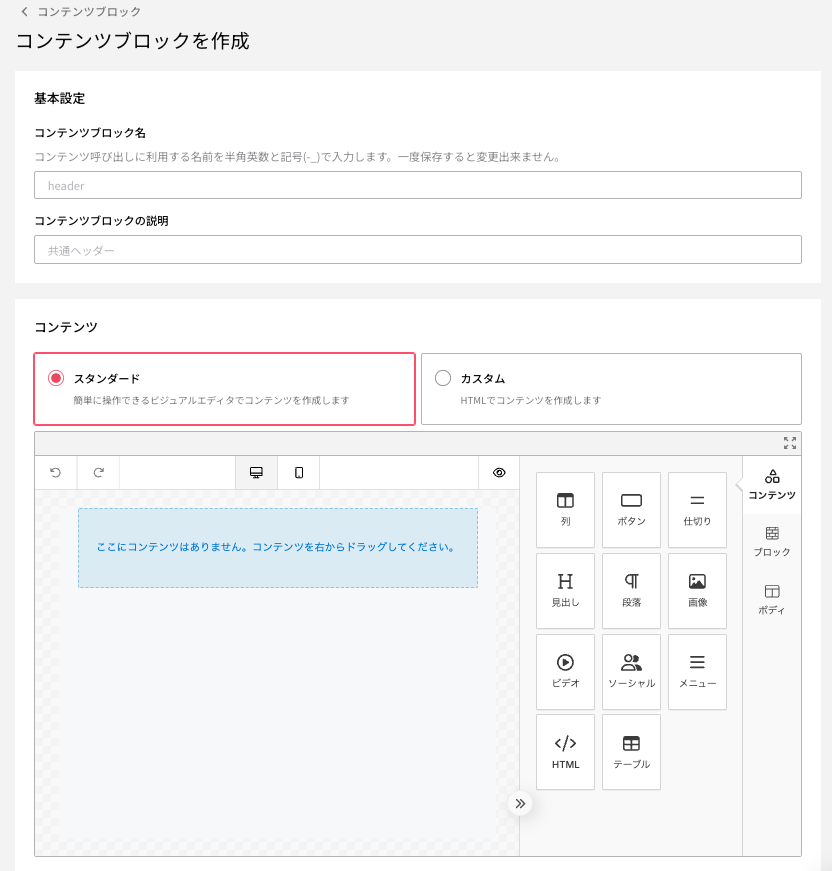
Content block name |
The identifier for using the content block within a campaign. It cannot be changed after creation. |
Description |
Enter supplementary information about the content block. This field is optional. |
Content editor |
Create the content of the content block. As with email campaigns, you can choose between the standard editor and the custom editor. |
In the standard editor, you can create content by placing headings, images, buttons, and other elements with drag and drop. In the custom editor, you can create content by entering HTML/CSS directly.
Note
Content block names can contain only single-byte alphanumeric characters, hyphens (
-), and underscores (_). Names can be up to 255 characters long, and must not duplicate the name of another content block within the same project.You cannot use another content block within a content block.
Edit the content of the content block
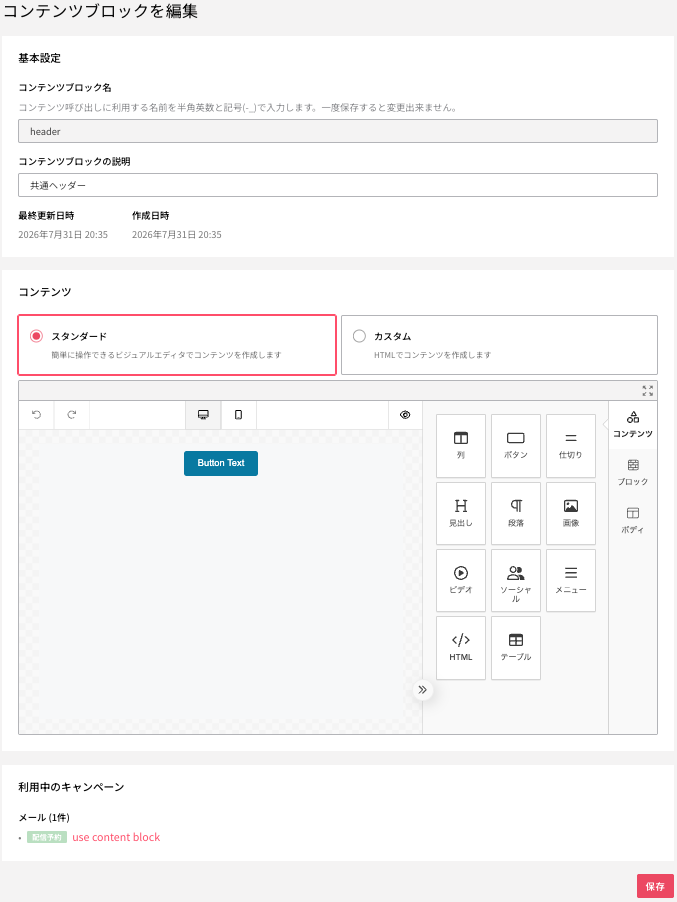
The edit screen shows the creation date and last updated date, along with a list of campaigns that are using this content block. After editing the content, click the [Save] button.
Warning
When you change the content of a content block, the change is applied to all campaigns that use it. Because this may affect campaigns that are currently being delivered, review your changes carefully in advance.
Delete a content block
You can delete a content block from the action menu on the content block list screen.
Warning
Content blocks used by published or unpublished campaigns cannot be deleted.
You can check which campaigns are using a content block on the content block edit screen.
Use a content block in an email campaign
You can insert a content block you created into the body of a broadcast mail or a trigger mail by writing {% contents content_block_name %}. At the time of delivery, the latest content of the content block is expanded.
Warning
Write the content block name without quotation marks. If you enclose it in quotation marks, as in {% contents 'content_block_name' %}, the name cannot be resolved.
By combining it with Liquid syntax, you can also expand a content block only when a specific condition is met.
{% if some_condition == 'true' -%}
  {% contents コンテンツブロック名 %}
{% else -%}
  <div>こんにちは</div>
{% endif -%}
Number of blocks that can be inserted |
You can insert up to five content blocks per campaign. |
Preview |
In the preview on the campaign creation screen, the content of the content block is not expanded. |
Test delivery |
In test delivery, the content of the content block is expanded before delivery. However, variables inside the content block (for example, |