
Webhook
Webhook is a feature that sends an HTTP request to any external system, triggered by a specific event that occurred in Repro. Because Repro and external systems can be linked in real time, it can be used for a variety of initiatives, such as collecting and utilizing zero-party data in your own business systems and running cross-service campaigns.
Create an Webhook
Go to the Webhook creation page
Log in to the dashboard and click [Marketing] > [WEBHOOK] to go to the Webhook list page.
![[Marketing] > [WEBHOOK] in the left menu](../../_images/webhook-menu.en.png)
After the list page is displayed, click the [Create New] button at the top right to go to the Webhook creation page.
![[Create New] button on the Webhook list page](../../_images/webhook-move-to-create.en.png)
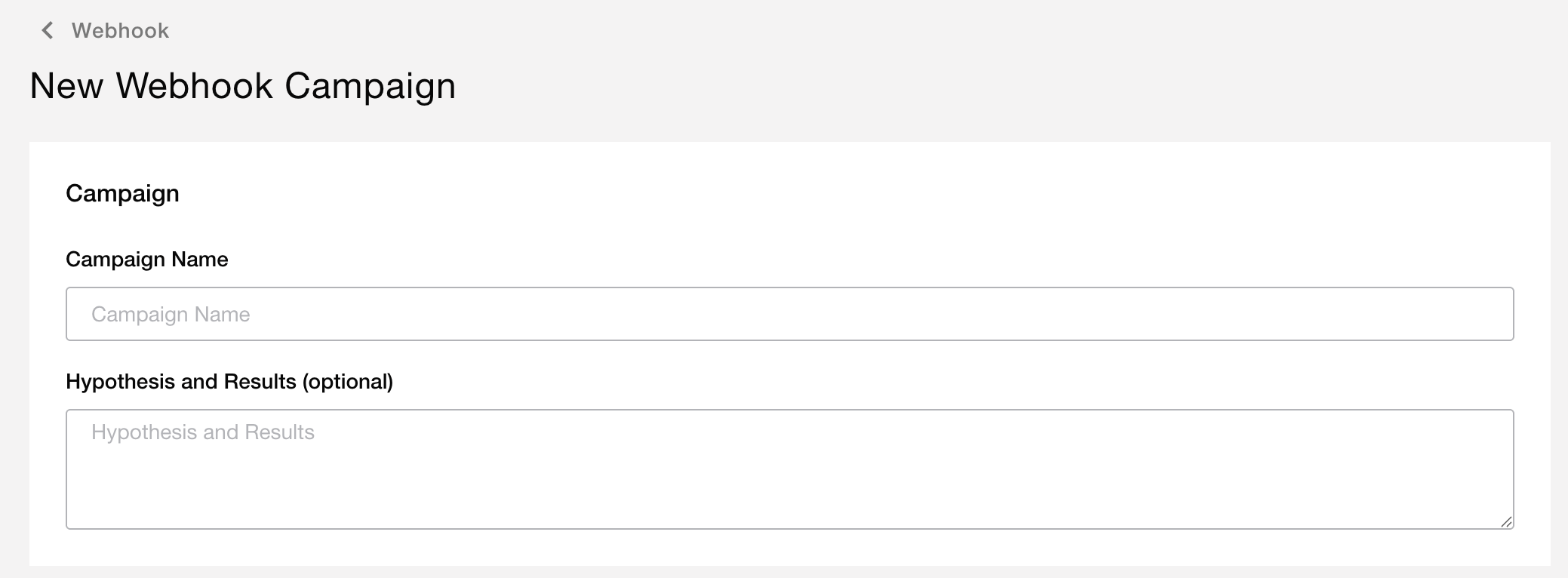
Enter campaign information
Enter the title of the campaign, the campaign goals, the campaign hypothesis, and the results.(The campaign goals, the campaign hypothesis, and the results are optional.)
Select Target
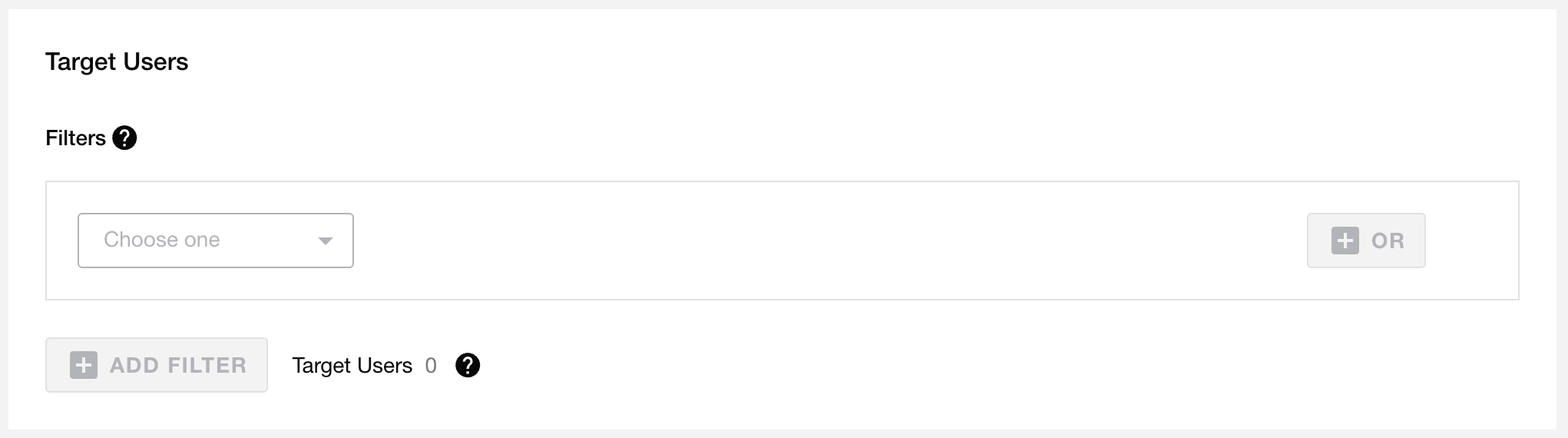
Specify the target users of the campaign. For how to specify the target, see Select Target.
Note
If you select “Add Cart at least once” as the target and “Add Cart” as the trigger condition, the Webhook will be delivered when “Add Cart” is executed for the first time, not when it is executed twice.
This is not the case if segmentation takes a long time.
Enter delivery settings
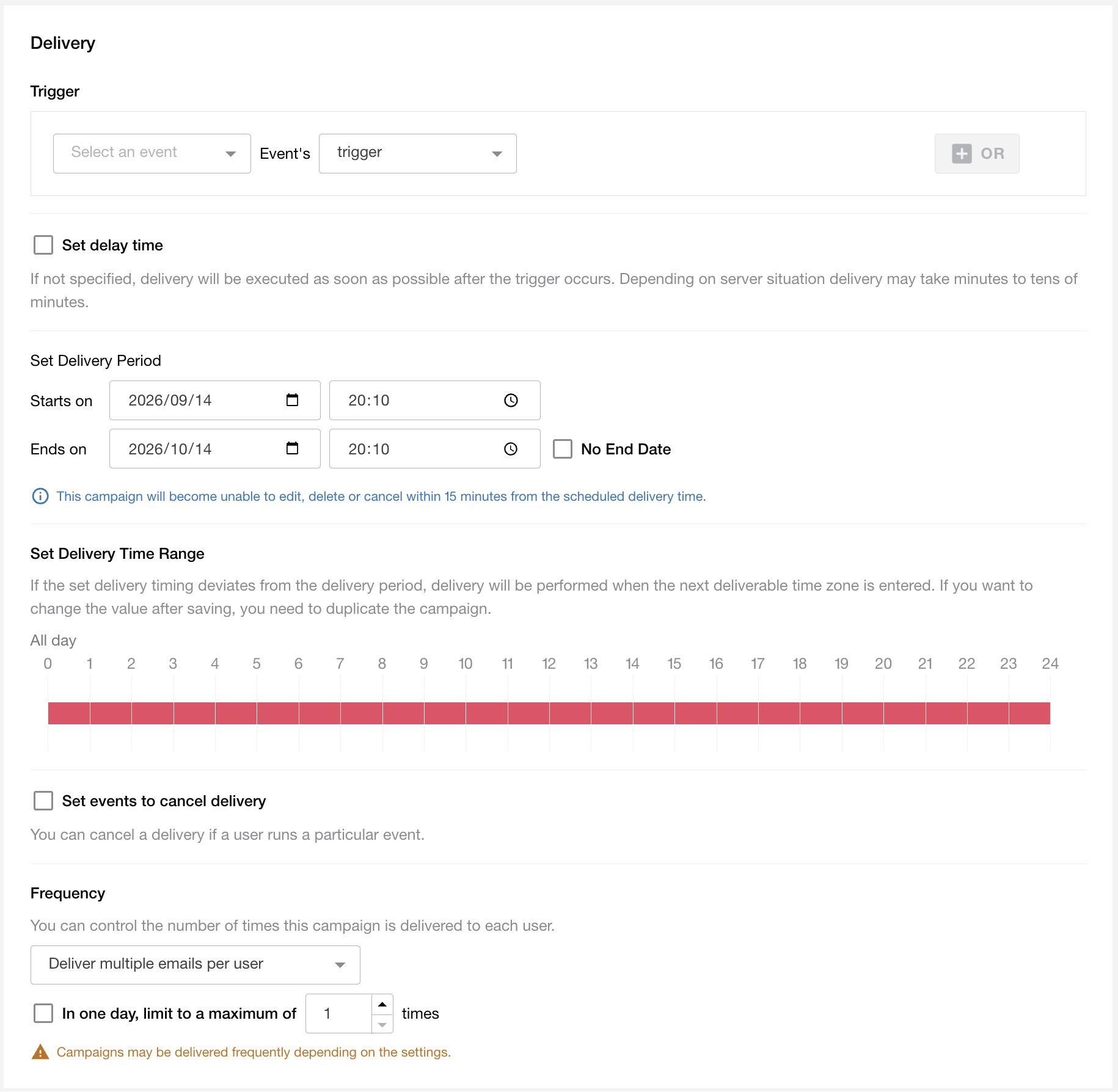
Enter the delivery settings for the campaign.
- Trigger
Specify the event or property that triggers the delivery of the Webhook.
It is not possible to specify user profile’s change as a trigger condition.
- Set delay time
When checked, the Webhook is delivered after a certain period of time has elapsed since the trigger condition event was executed.
The elapsed time can be specified from 15 minutes as minimum to 7 days as maximum.
If unchecked, the Webhook is delivered immediately, but it may take several minutes to several dozen minutes depending on server congestion.
- Set Delivery Period
Set the period during which the Webhook is delivered.
- Set Delivery Time Range
To prevent delivery at unintended times such as midnight or early morning, set the time when delivery is allowed.
If the trigger condition event of the Webhook is executed outside the set delivery time range, the Webhook will be delivered when the next delivery time range starts.
If the campaign delivery period has passed while waiting for the next delivery time range, the Webhook will not be delivered.
Once a campaign is saved, the delivery time range cannot be changed. If you want to change it, please duplicate the corresponding campaign.
- Set events to cancel delivery
When checked, you can specify events that cancel the delivery, to stop delivery to unintended users.
If a user who has executed the trigger condition event then executes the specified event, the scheduled delivery is canceled.
Depending on the timing of the event to cancel the delivery, such as just before the delivery or triggered time close to cancel, the delivery may be made as is.
- Frequency
You can set the delivery frequency to prevent the Webhook from being delivered many times a day.
If you register events that may be executed many times a day as trigger conditions, a large number of Webhooks may be delivered.
Enter contents
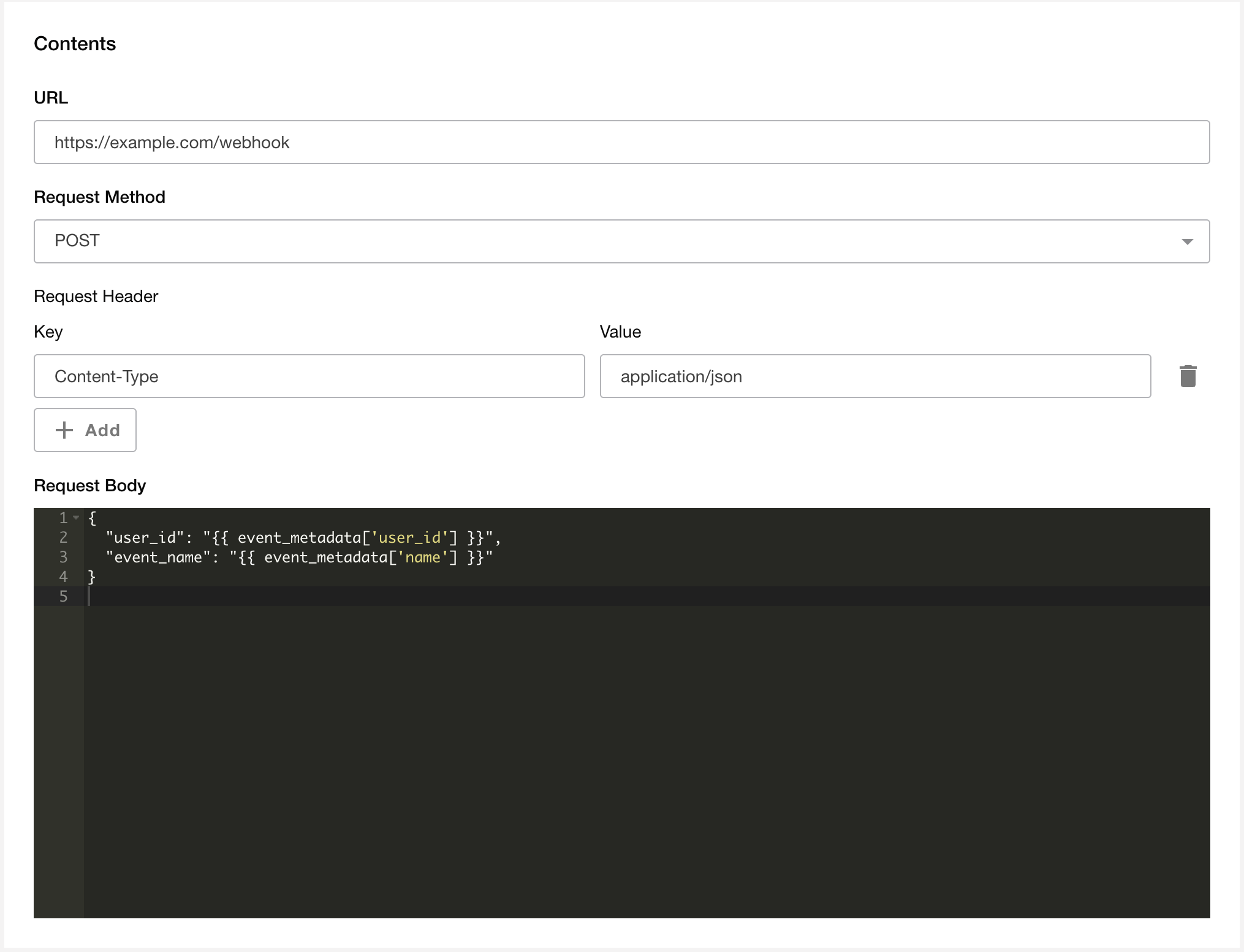
Set the content of the HTTP request to be sent to the external system.
items |
Description |
|---|---|
URL |
Enter the destination URL of the request.
Only URLs starting with
http:// or https:// can be specified. |
Request Method |
Fixed to |
Request Header |
Set the keys and values of the request headers.
Click the [Add] button to add a header. Click the [Remove] button to remove the corresponding header.
|
Request Body |
Enter the request body in JSON format.
You can insert user profile and event information using Use Liquid personalization.
|
Note
The contents can be edited even after publishing.
Press LAUNCH to start the campaign.
By publishing, the Webhook will be delivered when a targeted user tracks the trigger event during the delivery period.
Send a test request
In the [Test Request] section of the creation page, you can actually send an HTTP request with the configured contents and check the response from the destination.
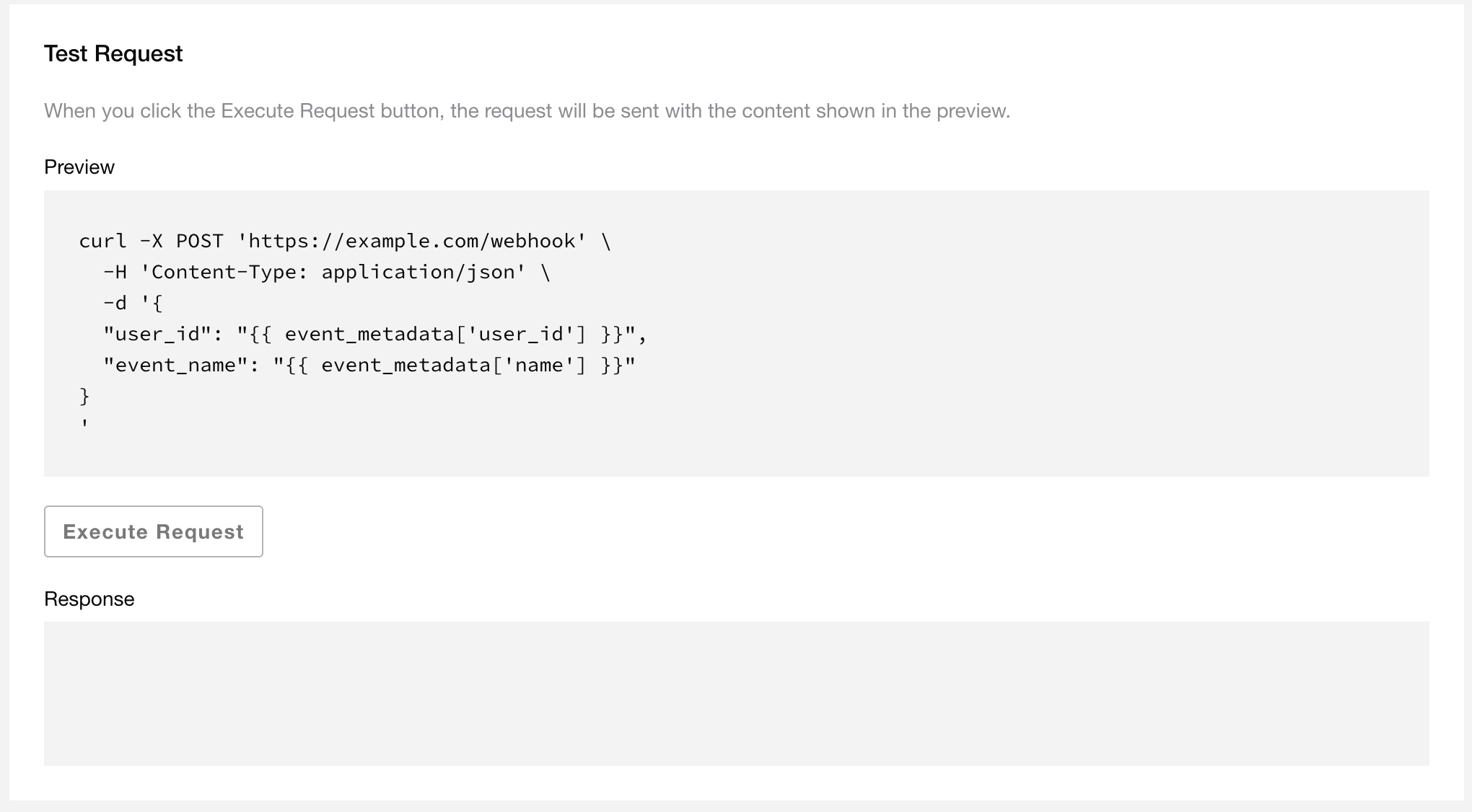
items |
Description |
|---|---|
Preview |
A curl command with the same content as the request to be sent is automatically generated based on the entered contents. |
Execute Request |
Click to actually send an HTTP request with the content displayed in the preview.
It can be clicked only when the URL, request method, and request body have all been entered.
|
Response |
The response from the destination server is displayed as is.
If there is a problem with the request, such as an invalid JSON format in the request body, an error message is displayed.
If no response is returned within 15 seconds, it is displayed as a timeout.
|
HTTP request sending specifications
Retry
If the status code of the response from the destination server is other than 2xx, the request is treated as a failure. If sending fails, it is resent after about 30 minutes. Resending is performed up to 3 times.
Timeout
If no response is returned within 30 seconds from the start of the request, it is treated as a timeout and becomes subject to resending. For the resending behavior, see Retry.
Source IP address of requests
If you need the source IP address of requests from Repro, for example because the destination restricts source IP addresses, please contact your Repro representative.
Use Liquid personalization
Liquid Personalization, which is available in push notifications and other campaigns, can also be used in the request body of an Webhook. For Liquid syntax rules and notes, see the Liquid Personalization page.
Information available as variables
Information |
Syntax |
Notes |
|---|---|---|
User Profile |
|
|
Event properties of the trigger event |
|
|
Event name of the trigger event |
|
|
User ID |
|
If the user does not have a user ID set, this will be an empty string. |
Tracking date and time of the trigger event |
|
Output in ISO 8601 format with a time zone offset, in the project’s time zone. Example: |
Example
This is an example of a request body that sends the user ID, event name, event property, and tracking date and time, triggered by an event that has the event property count.
{
  "user_id": "{{ event_metadata['user_id'] }}",
  "event_name": "{{ event_metadata['name'] }}",
  "properties": {
    "count": {{ event['count'] }}
  },
  "tracked_at": "{{ event_metadata['tracked_at'] }}"
}
Stop delivery
You can stop delivery by performing [Deactivate] or [Archive] on the target Webhook from the list page.
Warning
Once an Webhook is archived, it cannot be returned to the published state.
FAQ
Is there a limit on the number of Webhook deliveries?
There is no limit on the number of deliveries. This may change in the future.