
LINE Rich Menu (β)
A LINE rich menu is a menu that is always displayed at the bottom of the LINE chat screen. You can create rich menus from the Repro dashboard and automatically switch the displayed menu according to the delivery period and delivery target.
What you can do with LINE rich menus
Upload a prepared menu image and assign actions to tap areas based on a template.
A single rich menu can have up to 3 tabs (pages).
When you specify a delivery period, the menu is displayed automatically at the start date and time and hidden automatically at the end date and time.
Display a different rich menu for each delivery target.
By setting a delivery priority, you can layer a limited-time menu over a menu with no end date. When the period ends, the original menu is restored automatically.
Steps required to deliver LINE rich menus
Create a new LINE channel and complete the initial setup from LINE Channel Settings.
If you deliver to a specified delivery target, register LINE user IDs to Repro by referring to Registering LINE User ID to Repro.
Create and publish a rich menu from the Repro dashboard.
Note
Rich menus whose delivery type is “Default” are also displayed to friends whose LINE user ID is not registered in Repro.
If "LINE Rich Menu" is not displayed in the left menu, contact our Customer Success team.
Creating a new rich menu
Open the rich menu creation screen
Log in to the dashboard and click [Marketing] > [LINE Rich Menu] in the left menu to open the rich menu list screen. Click the [Create New] button in the upper right of the list screen to open the rich menu creation screen. The four sections Campaign, Delivery Target Settings, Delivery Settings, and Content are all configured on a single screen.
Enter the campaign
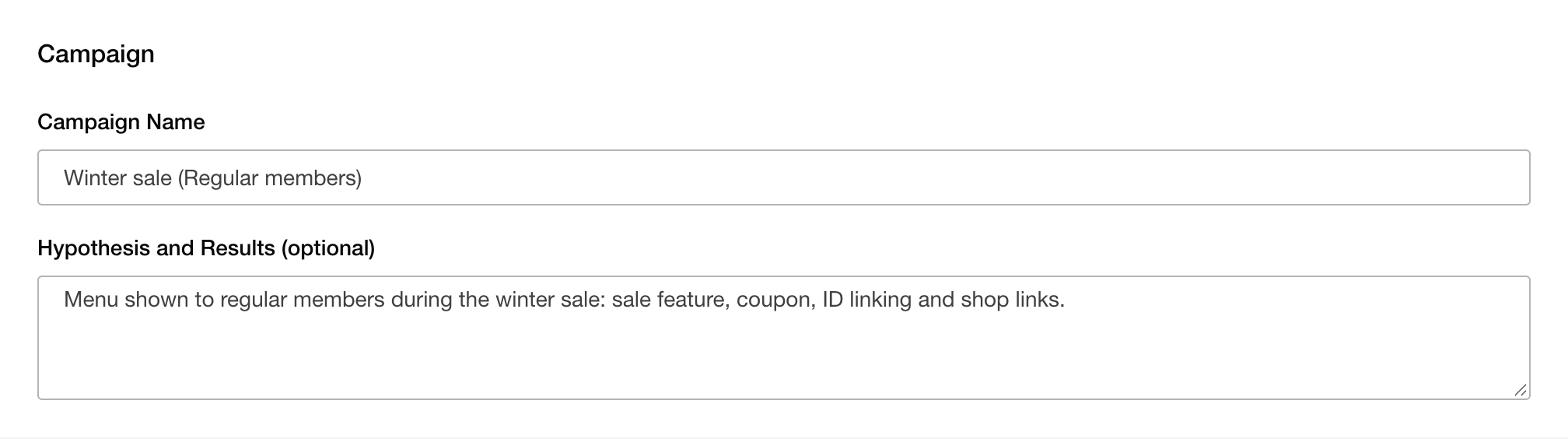
Campaign Name Enter the campaign name of the rich menu. Enter up to 255 characters.
Hypothesis and Results Enter the hypothesis and results of the campaign. This can be used as a memo for administrators.
Set delivery target
Set the delivery type, the delivery channel, and the delivery target.
Delivery type
Select the delivery type from "Specify delivery target" or "Default". "Specify delivery target" is selected initially.
Delivery type |
Description |
|---|---|
Specify delivery target |
A menu displayed only to the target users specified by filters. You can set the delivery priority. |
Default |
The base menu displayed to all friends of the delivery channel. It is also displayed to friends whose LINE user ID is not registered in Repro. The delivery priority is always fixed at 0 (lowest), and the menu is displayed to all friends who have no other rich menu assigned. |
Specify delivery target
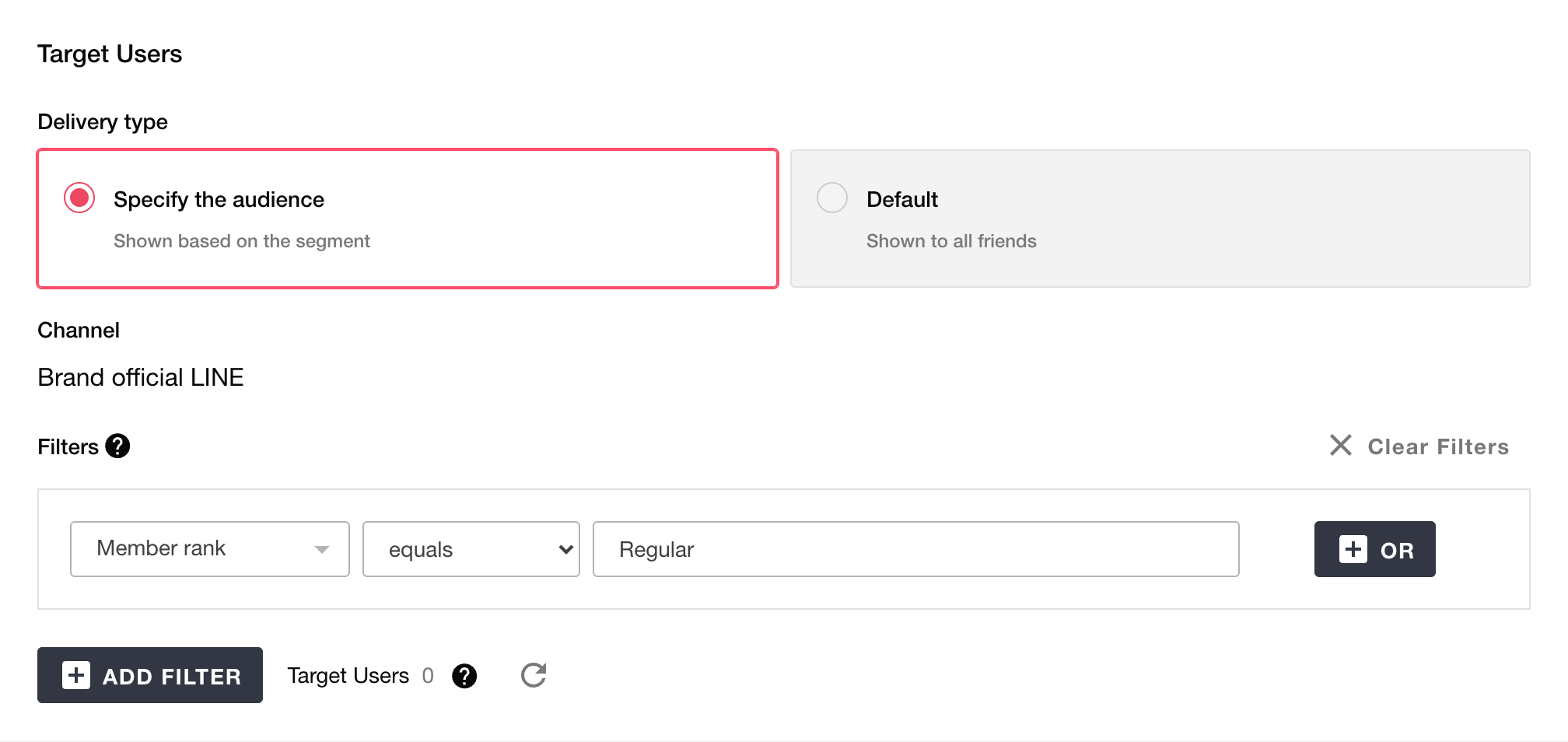
When you specify the delivery target, use filters to specify the users who will see the rich menu. As with the delivery target settings of LINE messages, you can specify an audience, filter audience, or existing users. See Audience for how to create an audience.
Note
Campaign audiences cannot be specified as the delivery target of a rich menu.
To display a limited-time rich menu to all friends, specify all users (“Existing users” in the filter) as the delivery target and set a delivery priority.
Whether a user matches the delivery target is evaluated continuously. If a user’s attributes or behavior change and the delivery target match changes, Repro requests LINE to switch the displayed menu within 10 minutes of the change. When the change appears on the device depends on LINE’s specifications.
Default
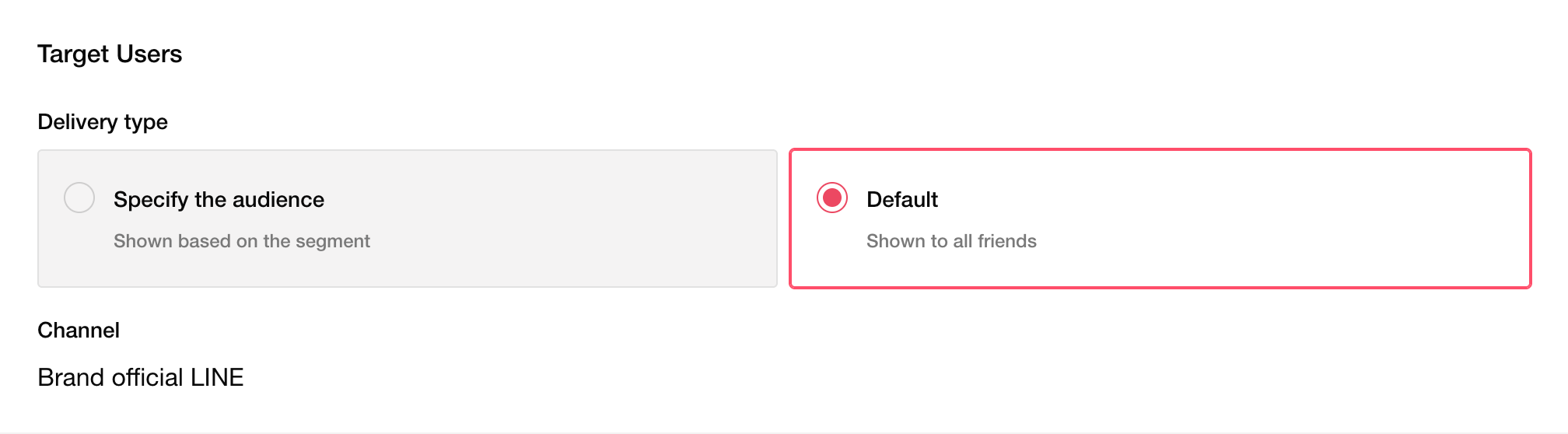
When Default is selected, the filter and delivery priority fields are not displayed.
Note
You can create multiple default rich menus, but a default rich menu cannot be published if its delivery period overlaps with a published (scheduled or active) default rich menu on the same delivery channel. If the end date and time is the same as the start date and time of the next rich menu, it is not considered an overlap.
All friends does not include users who have blocked the LINE Official Account.
Delivery channel
Select the LINE channel that delivers the rich menu. The delivery channel and the delivery type cannot be changed after the rich menu is saved as anything other than a draft.
Enter delivery settings
Delivery period

Set the period during which the rich menu is displayed.
Start Specify the date and time to start displaying the menu. After publishing, the menu is delivered automatically at the start date and time.
End Specify the date and time to stop displaying the menu. At the end date and time, the status changes to Ended automatically and the menu is hidden from users. If you check
Do not specify an end date, the menu continues to be delivered as a rich menu with no end date.
Note
Specify an end date and time that is later than both the start date and time and the current time.
At the start and end date and time, Repro requests LINE to switch the displayed menu within 10 minutes. When the change appears on the device depends on LINE’s specifications.
After delivery has started, the start date and time cannot be changed. To change it, stop delivery, change it, and then deliver again.
Delivery priority
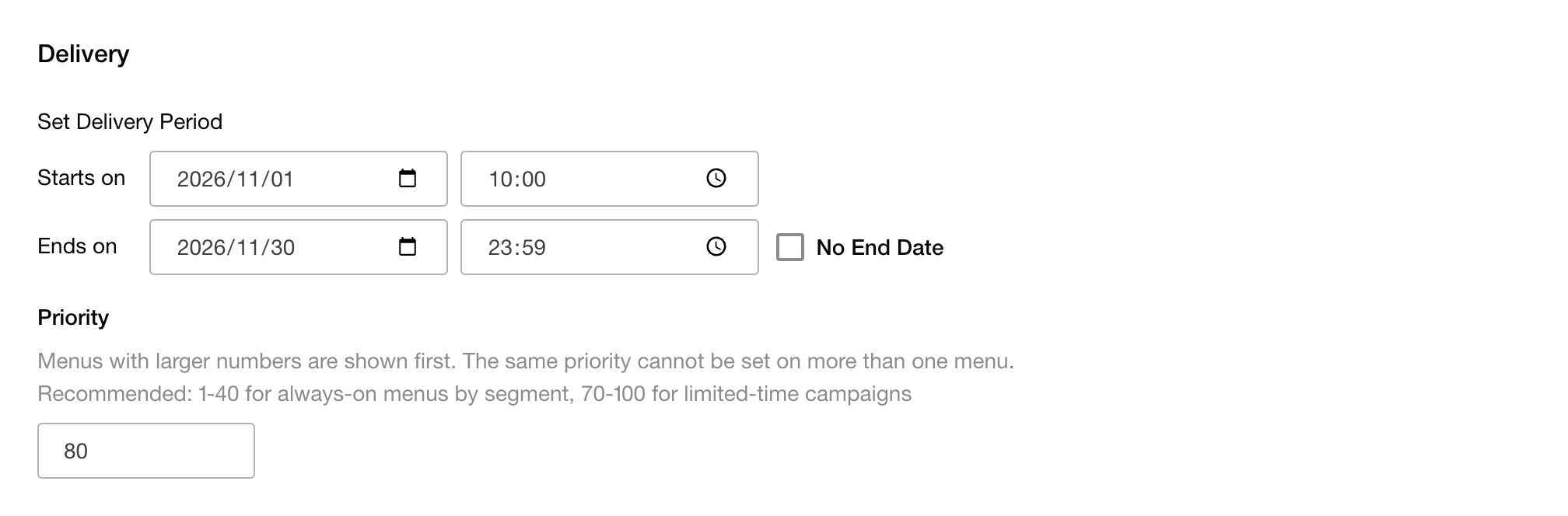
When "Specify delivery target" is selected as the delivery type, specify the delivery priority as an integer from 1 to 100. The default value is 50. If multiple rich menus apply to the same user, the rich menu with the higher delivery priority is displayed.
Type of rich menu |
Recommended priority |
Description |
|---|---|---|
Default |
0 (fixed) |
Displayed to all friends who have no other rich menu assigned. The priority cannot be set. |
Menu with no end date per delivery target |
1 to 40 |
Menus without an end date, such as menus for each membership rank. |
Limited-time menu |
70 to 100 |
Menus with a specified delivery period that are layered over menus with no end date, such as sales and campaigns. |
Warning
Published (scheduled or active) rich menus on the same delivery channel cannot have the same delivery priority. If the priority is duplicated, an error occurs when publishing. Duplicates with stopped or draft rich menus do not cause an error.
If a menu with no end date has a higher priority than a limited-time menu, the limited-time menu is not displayed even when it is layered on top. Using the recommended priorities as a guide, set menus with no end date low and limited-time menus high.
Set up content
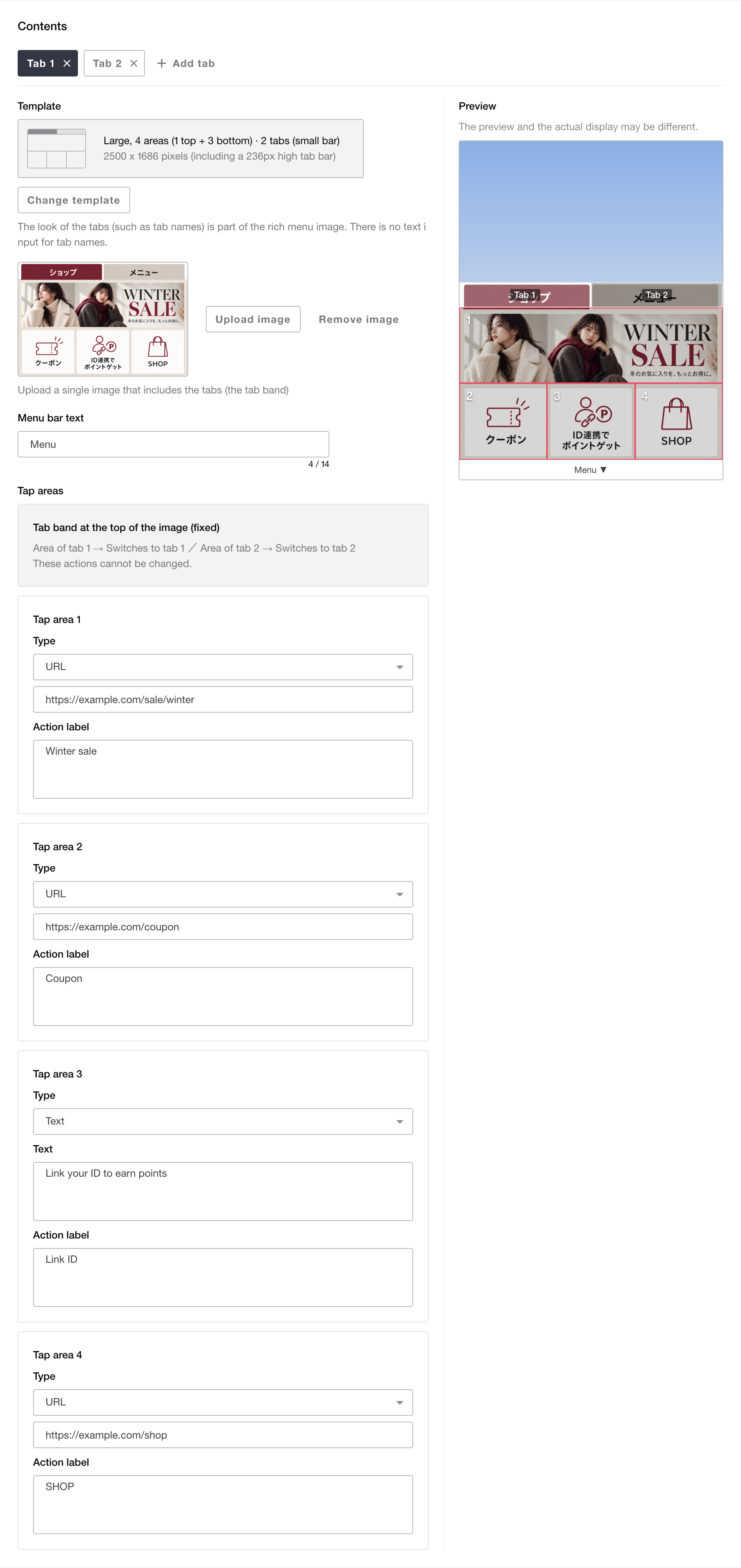
In Content, select a template, upload the menu image, enter the menu bar text, and set actions for tap areas. You can check how the menu will look in the preview on the right while configuring.
Select a template
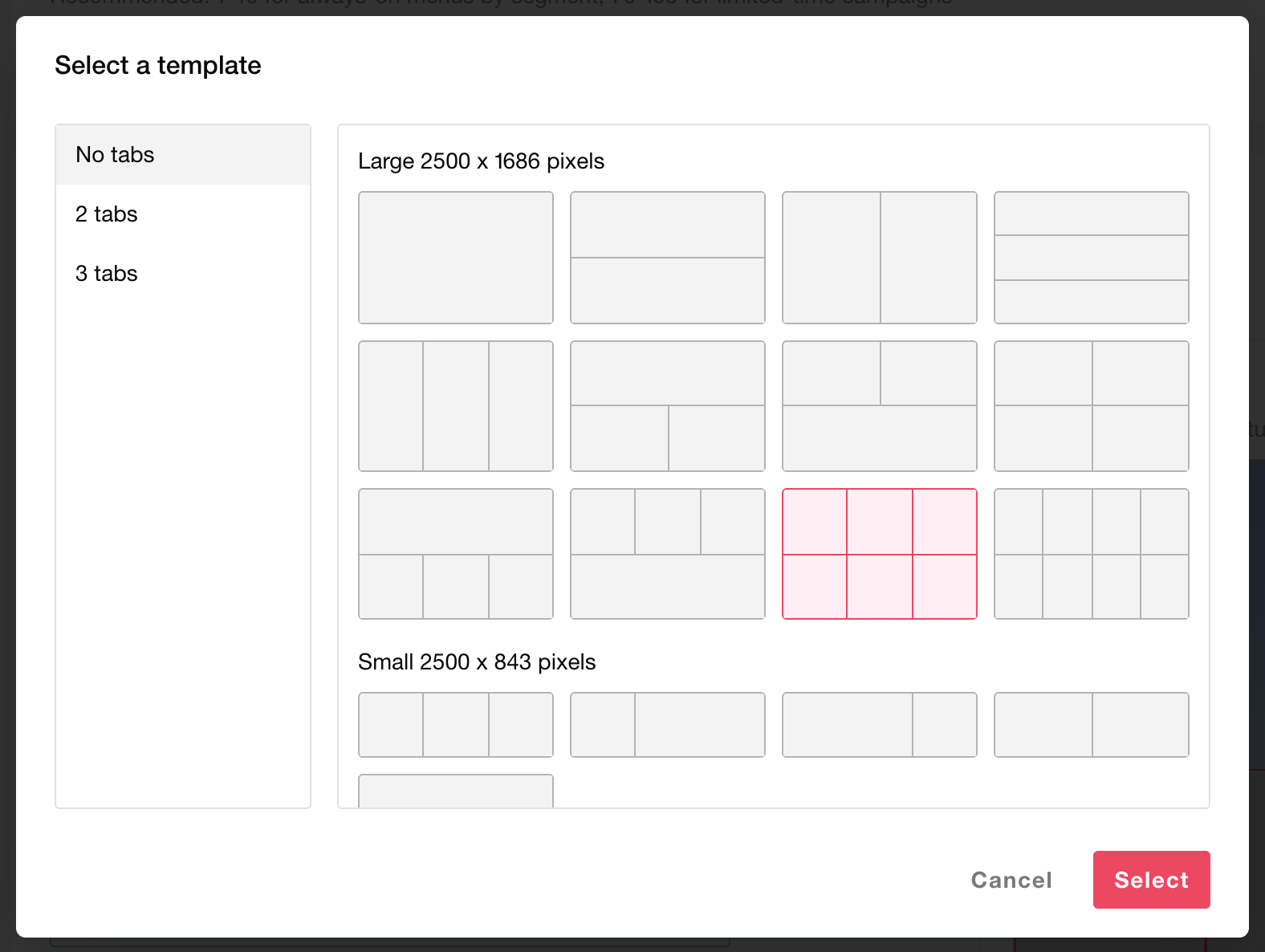
Click the [Change Template] button to open a dialog where you can select the layout of the tap areas. Click the template you want to use and click [Select]. "Large, 6 areas (2×3)" is selected initially.
Templates are divided into two types by image size: “Large” and “Small”. Large templates offer 12 layouts with 1 to 8 areas, and Small templates offer 5 layouts with 1 to 3 areas. The size of the image to upload is the same with tabs, but the body area where tap areas are placed is reduced by the height of the tab bar at the top of the image.
Menu size |
Tab bar |
Entire uploaded image |
Tab bar height |
Body area excluding the tab bar |
|---|---|---|---|---|
Large |
None |
2500px wide × 1686px high |
0px |
2500px wide × 1686px high |
Large |
Large |
2500px wide × 1686px high |
354px |
2500px wide × 1332px high |
Large |
Small |
2500px wide × 1686px high |
236px |
2500px wide × 1450px high |
Small |
None |
2500px wide × 843px high |
0px |
2500px wide × 843px high |
Small |
Large |
2500px wide × 843px high |
177px |
2500px wide × 666px high |
Small |
Small |
2500px wide × 843px high |
118px |
2500px wide × 725px high |
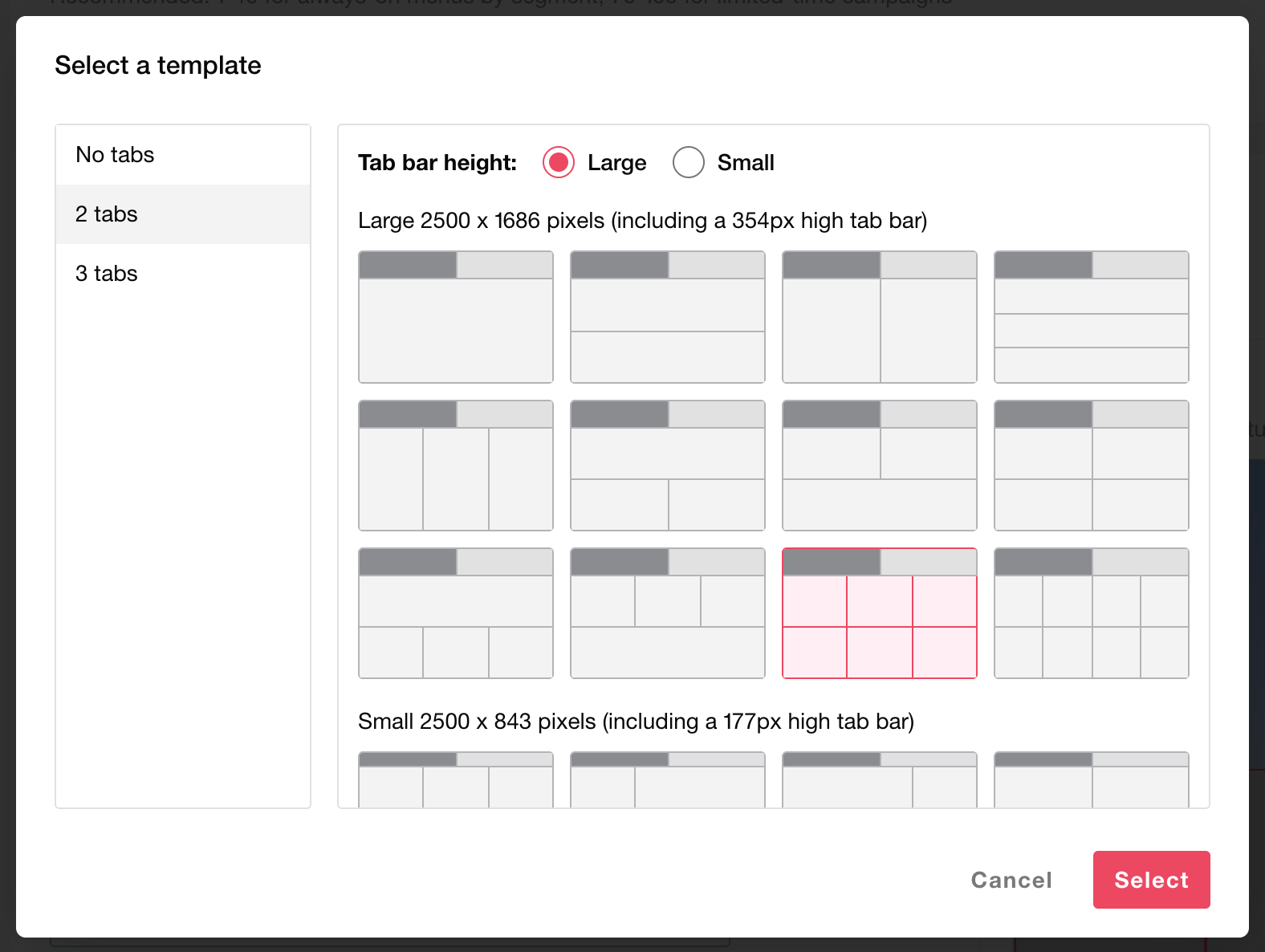
Select "No tabs", "2 tabs", or "3 tabs" in the categories on the left side of the dialog to change the number of tabs in the rich menu. For categories with tabs, select the tab bar height from "Large" or "Small".
Note
A total of 85 templates are available: 17 without tabs and 68 with tabs (2 to 3 tabs × tab bar height Large/Small).
When you change the template, the menu image already uploaded to that tab is reset. The tap area settings are carried over up to the number of areas in the new template.
When you change the number of tabs or the height of the tab bar, the menu images of all tabs are reset. If the number of tabs decreases, the settings of the trailing tabs are also deleted. A confirmation dialog is displayed before the change.
Add tabs
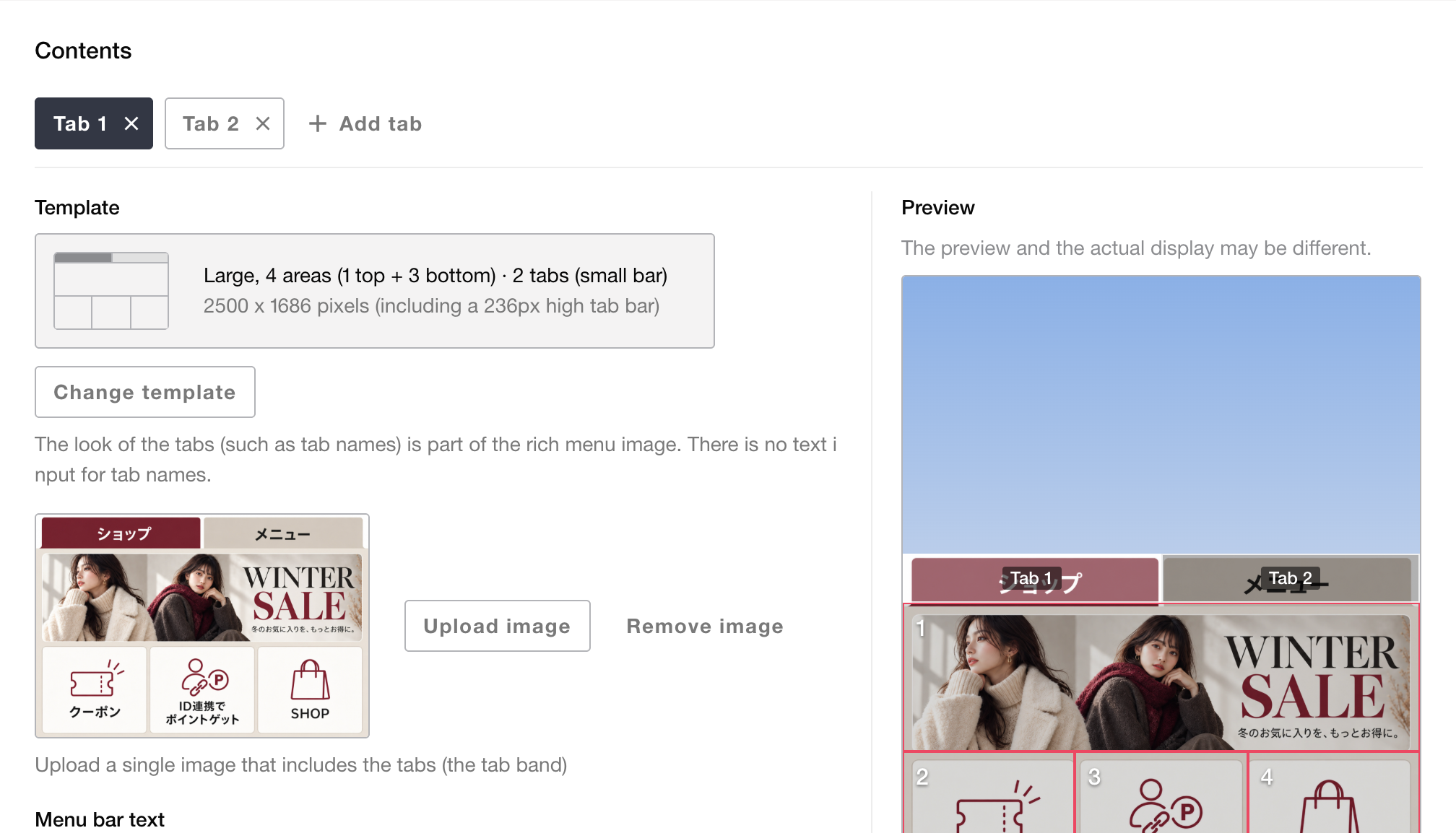
You can create up to 3 tabs (pages) in a single rich menu. Click the [Add tab] button at the top of Content to add a tab, and click a tab button to switch the tab being edited. Click [×] on a tab button to delete that tab after confirmation. Set the template, menu image, and tap areas individually for each tab.
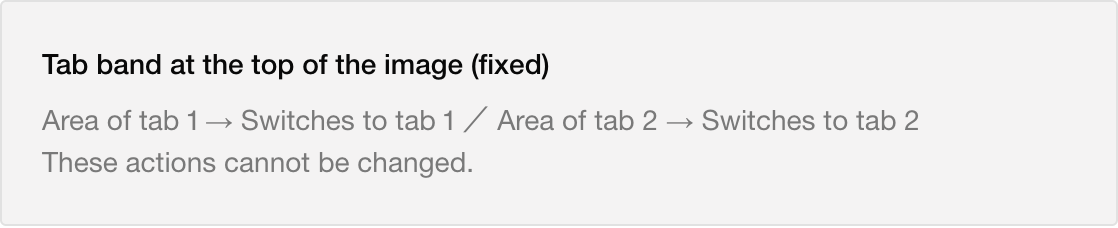
In a rich menu with tabs, a tab bar area is reserved at the top of the image. The height of the tab bar is 21% of the image height when the tab bar height is "Large" and 14% when it is "Small". The tab bar area is divided equally according to the number of tabs, and tapping each area switches to the corresponding tab. The actions of the tab bar cannot be changed. The tap areas of the template are placed in the remaining area below the tab bar.
Warning
Include the appearance of the tabs (such as the tab bar and tab names) in the rich menu image itself. Repro does not draw the tab bar or provide a setting for tab names.
A rich menu with tabs has 2 or 3 tabs. If only one tab remains after deleting tabs, the rich menu is treated as a rich menu without tabs.
When you delete a tab, tap areas that were set to "Switch tab" to the deleted tab revert to the "URL" type.
Upload the menu image
Click the [Upload Image] button to upload the rich menu image. If the menu has tabs, upload an image for each tab. You can remove an uploaded image with [Remove image].
Note
Match the image size to the size shown in the “Template” field of Content. Images of a different size cannot be uploaded.
File format: JPEG, PNG
File size: 1MB or less
If the menu has tabs, upload a single image that includes the tab bar area.
The menu image is required. If any tab has no image, the rich menu cannot be saved as published or unpublished.
Enter the menu bar text
Enter the text of the menu bar displayed at the bottom of the chat screen (the bar that opens and closes the rich menu when tapped). Enter up to 14 characters. The initial value is "Menu". The menu bar text is set per rich menu and is shared by all tabs when the menu has tabs.
Set actions for tap areas
A settings form is displayed for each tap area according to the selected template. Select a type and enter the content for that type.
Type |
Description |
|---|---|
URL |
Opens the entered URL when tapped. |
Text |
When tapped, the user sends the entered text in the chat room. |
Switch tab |
Switches to the specified tab within the same rich menu when tapped. Available only for rich menus with tabs. |
No action |
Nothing happens when tapped. Use this for decorative or separator areas. |
URL
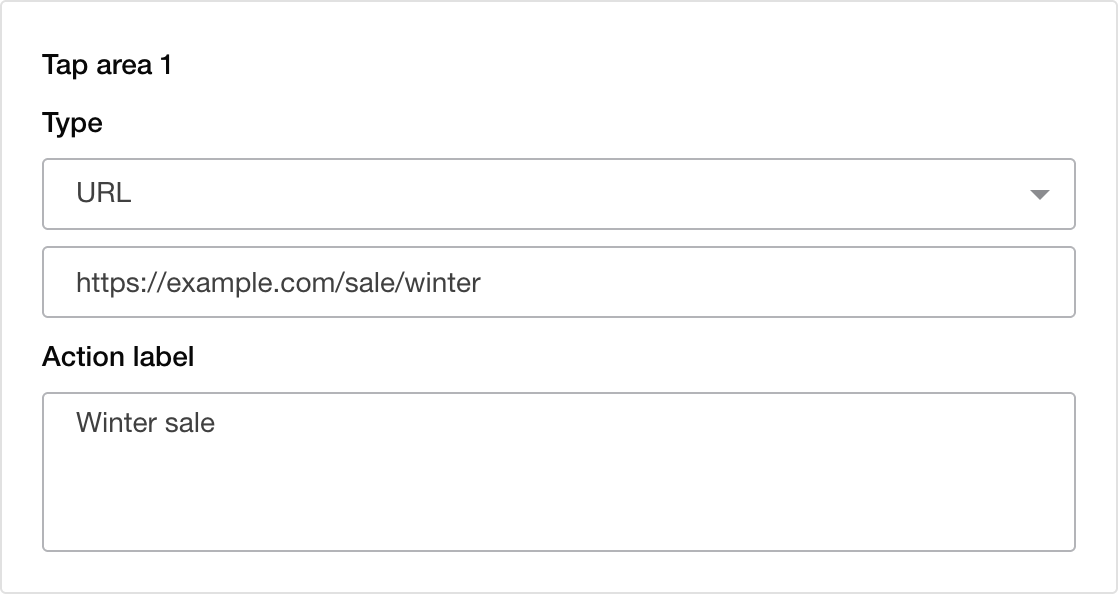
Enter the URL to open when tapped.
Text
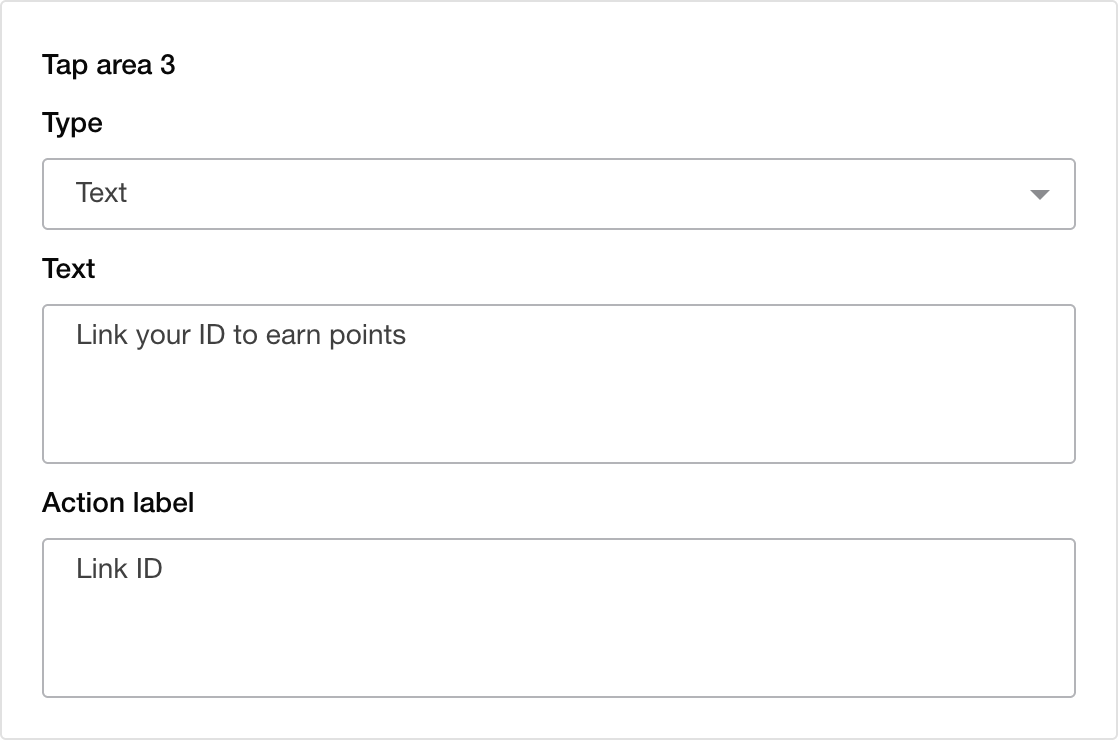
Enter the text the user sends when tapped.
Switch tab
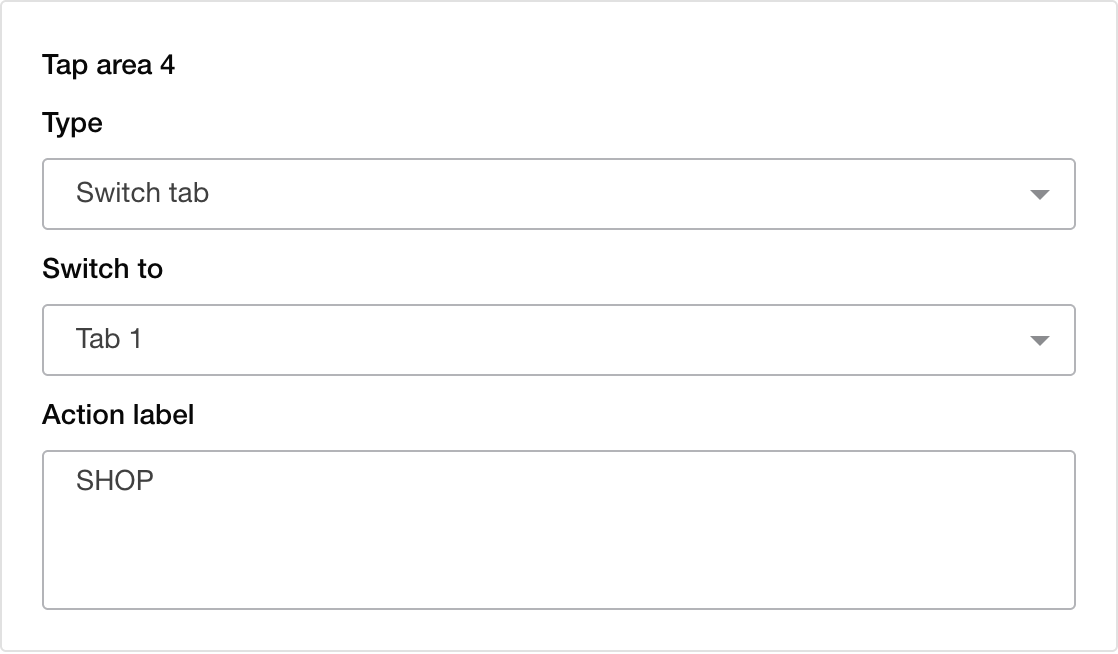
Select the tab to switch to.
Action label
For types other than No action, you can enter an action label (optional). The action label is used by accessibility features such as screen readers and is not displayed on the image.
Note
Tap areas with the URL or Text type cannot be saved as published or unpublished while their content is empty.
Liquid variables cannot be embedded in URLs or text. To show different content to different users, combine delivery targets and delivery priorities.
See the preview
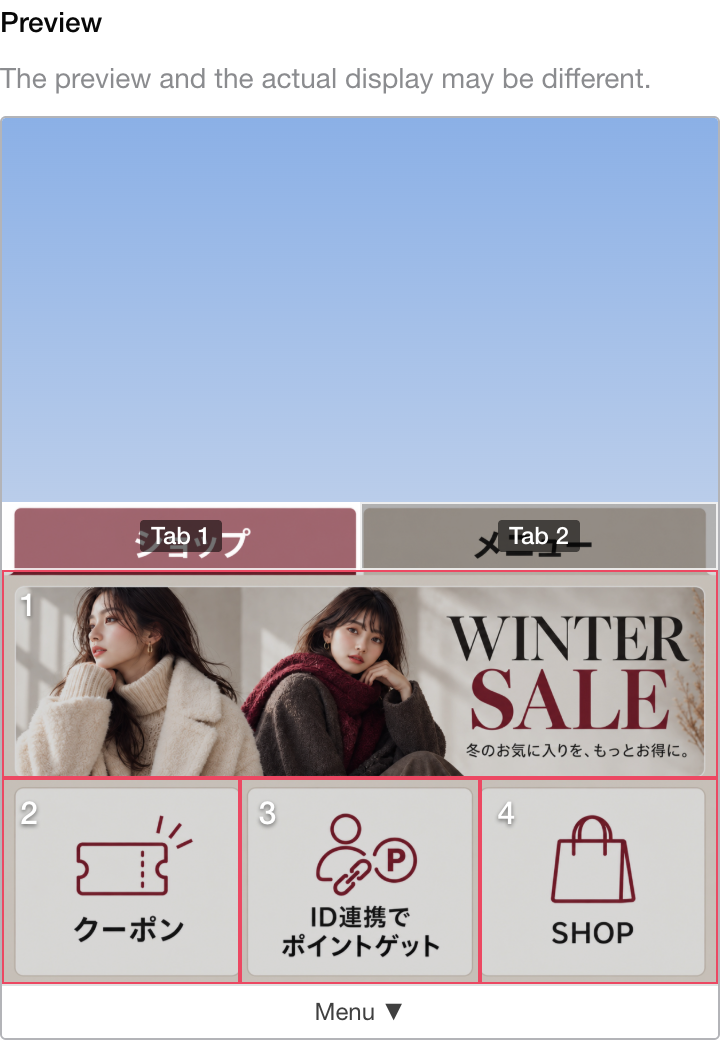
A preview that simulates the chat screen is displayed on the right side of Content. You can check the boundaries of the tap areas and the menu bar text. If the menu has tabs, click the tab bar in the preview to switch the displayed tab.
Note
The preview may differ from the actual display.
Save

Save the rich menu using the buttons at the bottom of the screen. When you save it as published or unpublished, the detail screen opens.
Button |
Status after saving |
Description |
|---|---|---|
SAVE AS DRAFT |
Draft |
Saves the content you are working on as is. The input is not validated and is not registered to LINE. Displayed only when creating a new rich menu or editing a draft. |
LAUNCH AS PRIVATE |
Stopped |
Validates the input and saves the rich menu without displaying it to users. The menu is registered to LINE when it is published. You can publish it at any time with "Deliver" in the list. |
LAUNCH |
Scheduled or Active |
Publishes the rich menu. The status becomes Scheduled if the start date and time is in the future, or Active if the start date and time is now or in the past. |
Rich menu list screen
Log in to the dashboard and click [Marketing] > [LINE Rich Menu] in the left menu to open the rich menu list screen.
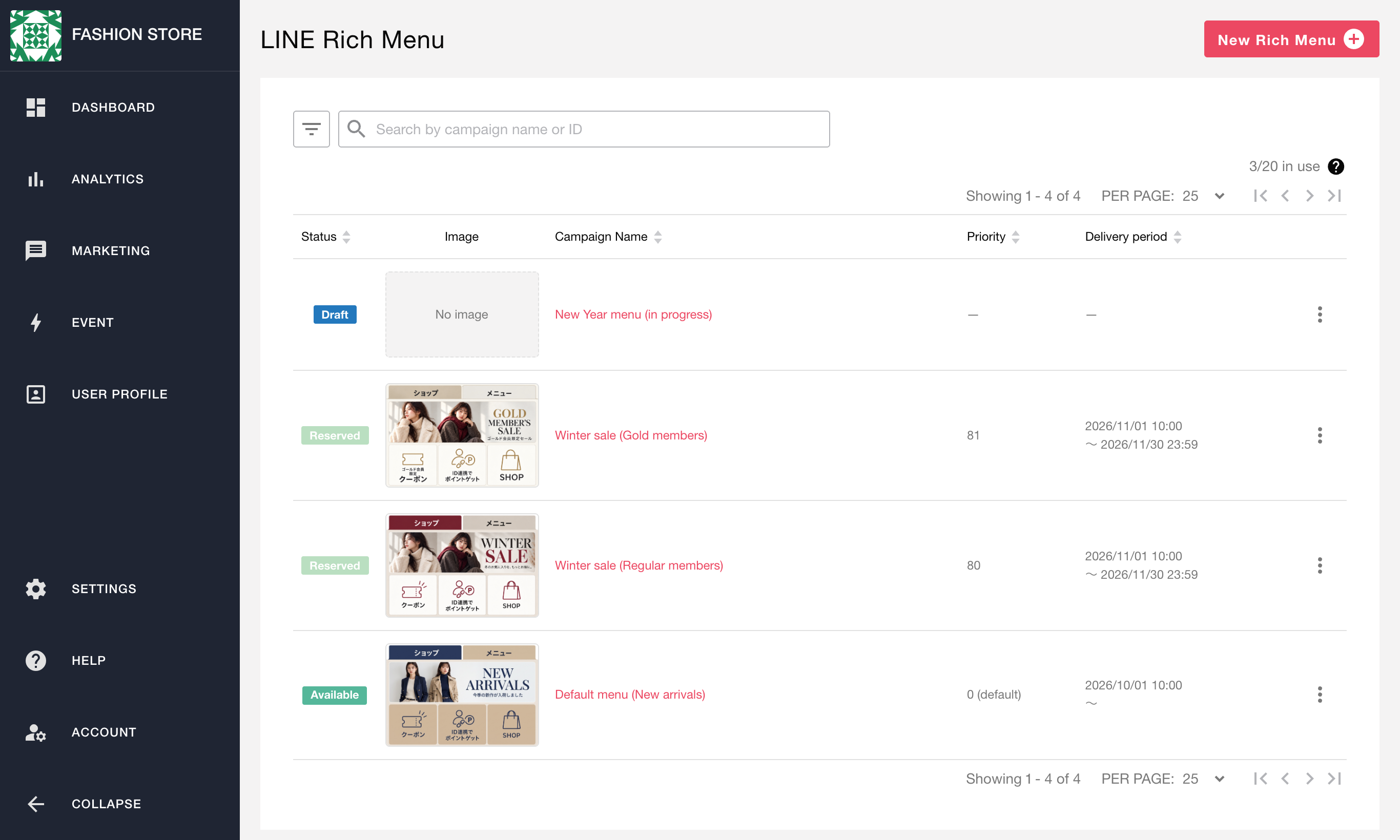
Items displayed in the list
items |
Description |
|---|---|
Status |
The delivery state of the rich menu (Draft, Scheduled, Active, Stopped, Ended, or Archived). |
Image |
A thumbnail of the menu image of tab 1. If no image is set, "No image" is displayed. |
Campaign Name |
The campaign name of the rich menu. Clicking it opens the edit screen for drafts and the detail screen for all other statuses. |
Delivery priority |
The priority (1 to 100) of rich menus with a specified delivery target. Default rich menus are displayed as "0 (Default)". |
Delivery period |
The start and end date and time. If no end date is specified, only the start date and time is displayed. |
Operations from the list
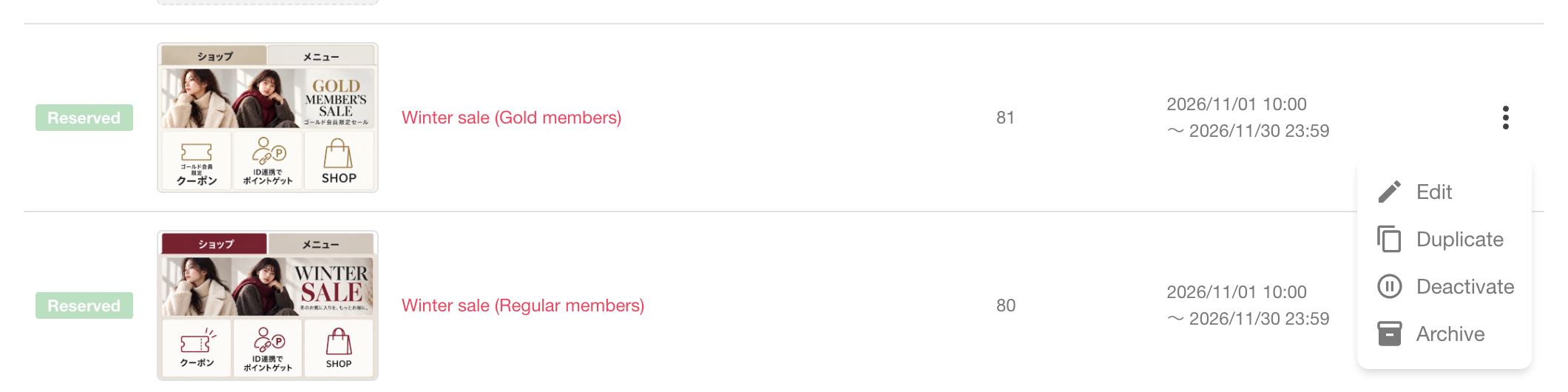
Click the [⋮] button at the right end of each row to select an operation according to the status.
Operation |
Available statuses |
Description |
|---|---|---|
Edit |
Draft, Scheduled, Active, Stopped |
Opens the edit screen. You can edit scheduled and active rich menus without stopping them. |
Duplicate |
All |
Opens the creation screen with the settings copied. The campaign name is set to "Copy of (original name)". The rich menu is not created until you save it. |
Deliver the message |
Stopped |
Publishes the rich menu again. The status becomes Scheduled or Active depending on the delivery period. |
Stop delivery |
Scheduled, Active |
Changes the rich menu to Stopped. |
Archive |
Scheduled, Active, Stopped, Ended |
Archives the rich menu. Once archived, it cannot be restored. |
Delete |
Draft |
Deletes the draft. |
Note
When you select Deliver, Stop delivery, Archive, or Delete, a confirmation dialog is displayed before the action is executed.
You cannot run "Deliver" on a rich menu whose delivery period is in the past. Change the delivery period on the edit screen and then publish it.
While the number of published rich menus has reached the limit, "Deliver" is not displayed.
When you stop or archive an active rich menu, the menu registered to LINE is deleted immediately. The next menu is assigned to the users who were viewing it 15 minutes after the last operation on the same LINE channel. Until then, the menu from before the stop may remain displayed on users’ devices.
Check rich menu details
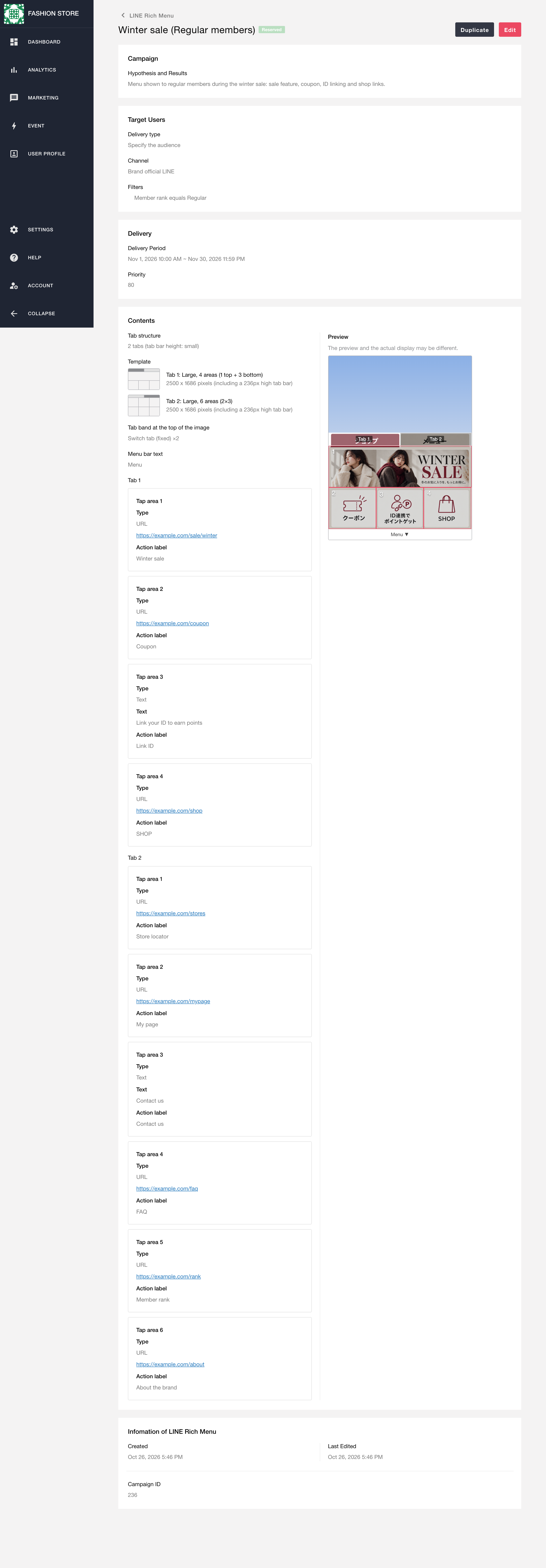
Click the name of a rich menu other than a draft in the list screen to open the detail screen. You can check the settings of Campaign, Delivery Target Settings, Delivery Settings, and Content, and the preview. In the preview, clicking the tab bar or a tap area that switches tabs changes the displayed tab, and clicking a URL tap area opens the link in a new browser tab.
You can duplicate the rich menu from the [Duplicate] button in the upper right of the screen. For scheduled, active, and stopped rich menus, you can open the edit screen from the [Edit] button in the upper right of the screen.
Note
Effectiveness measurement such as the number of taps on the rich menu is not provided.
Statistics for rich menus delivered from Repro are not displayed in "Insight" > "Rich menus" of LINE Official Account Manager. To measure the destination after a tap, add UTM parameters or similar to the URL and check them with the analytics tool of your website.
Edit a rich menu
Open the edit screen from “Edit” in the [⋮] menu of the list, or from the [Edit] button on the detail screen. You can edit the same items as on the creation screen. On the edit screen of a saved rich menu, you can also duplicate it from the [Duplicate] button in the upper right of the screen.
Note
The delivery channel and the delivery type cannot be changed.
Stopped rich menus can be edited even after the end date and time has passed. Change the delivery period and then publish with "Deliver".
Rich menus that can be edited
Rich menus with the status Draft, Scheduled, Active, or Stopped can be edited. Ended and archived rich menus cannot be edited. To reuse one with different content, duplicate it and create a new rich menu.
Edit a scheduled or active rich menu
Scheduled and active rich menus can be edited without stopping them. The status does not change after editing. When you edit and save an active rich menu, the changes are applied together 15 minutes after the last save on the same delivery channel. When the changes are applied, the tab the user has open returns to tab 1.
Recommended way to use LINE rich menus
We recommend preparing one menu with “no end date” for each delivery target, and layering a “limited-time menu” on top only during periods such as sales.
Example: Switching menus during a sale when you have rich menus for regular members and gold members in addition to the default menu
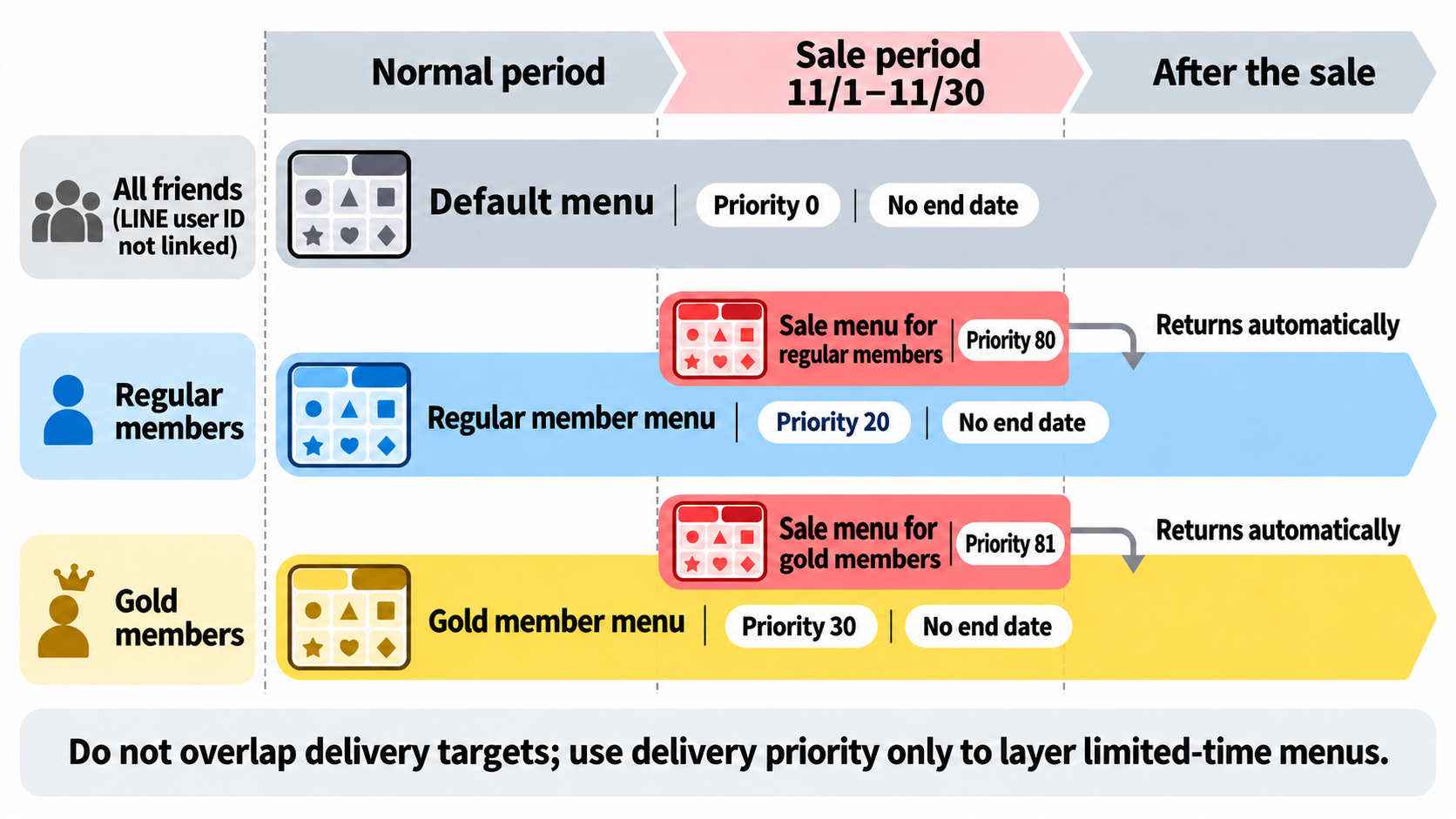
There are four points to keep in mind when operating as shown in the diagram above.
Do not overlap delivery targets Prepare the default menu for all friends (including friends whose LINE user ID is not linked), and a dedicated menu for regular members and for gold members, so that the delivery targets of menus delivered at the same time do not overlap. This is because a rich menu with a lower delivery priority may be displayed temporarily while a change of delivery target or a stop of delivery is being applied.
Use menus with no end date as the base The menu for each delivery target is delivered continuously without specifying an end date.
Layer limited-time menus with a higher delivery priority Publish the menu to display only during the sale period to the same delivery target with a delivery priority higher than the base menu (for example, 80 or 81). This menu is displayed during the period.
The original menu is restored automatically when the period ends After the end date and time of the limited-time menu, the base menu is displayed again. There is no need to create a menu for restoring the display or to switch menus manually.
Settings in this example
Rich menu |
Delivery type |
Filter |
Delivery period |
Delivery priority |
|---|---|---|---|---|
Default menu |
Default |
All friends |
No end date |
0 (fixed) |
Regular member menu |
Specify delivery target |
Regular members |
No end date |
20 |
Gold member menu |
Specify delivery target |
Gold members |
No end date |
30 |
Sale menu for regular members |
Specify delivery target |
Regular members |
November 1 to November 30 |
80 |
Sale menu for gold members |
Specify delivery target |
Gold members |
November 1 to November 30 |
81 |
With these settings, gold members see “Sale menu for gold members” and regular members see “Sale menu for regular members” during the sale period. When the sale period ends, “Gold member menu” and “Regular member menu” are displayed automatically to each group. Friends whose LINE user ID is not registered in Repro always see “Default menu”.
Check on a device before publishing
There is no dedicated test delivery feature for rich menus. To check the display on a device before publishing, specify only test users as the delivery target and publish.
Create an audience that contains only test users by referring to ID-specified audience.
Select "Specify delivery target" as the delivery type of the rich menu and specify the audience you created.
Set a delivery priority higher than the other rich menus and publish.
Check the display and the behavior of the tap areas on the test users’ devices.
After checking, change the delivery target and delivery priority to the production settings and save, or stop delivery.
Note
Rich menus published for testing are also counted toward the number of published rich menus.