
Tracking Parameter Settings
In Tracking Parameter Settings, you can manage tracking parameter presets used in email campaigns.
By registering presets, you can enter parameters simply by selecting from a dropdown when creating an email.
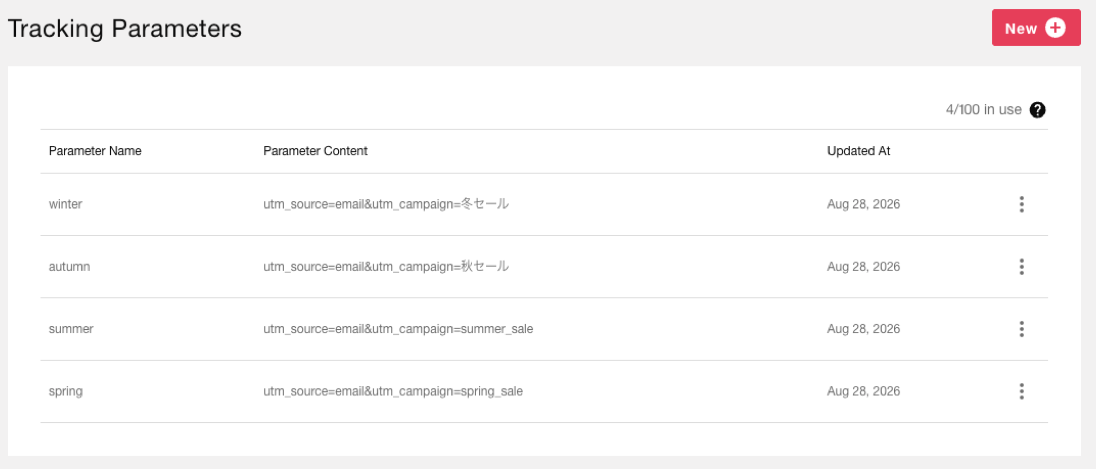
Preset list
Registered tracking parameters are displayed in a list. You can check the parameter name, parameter content, and updated date.
You can register up to 100 presets per project.
Create a new preset
Click the [New] button to navigate to the preset creation screen.
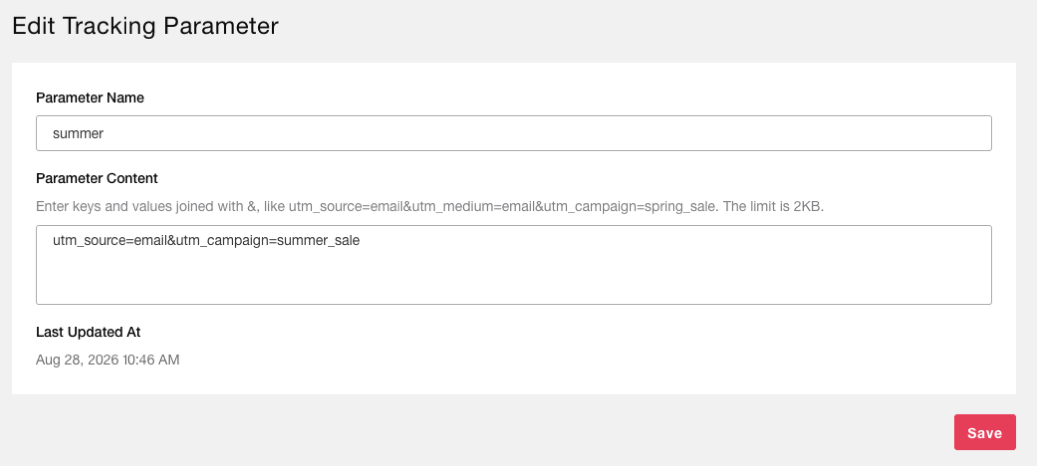
Parameter Name |
Enter the name of the preset. It will be displayed in the dropdown on the email creation screen (e.g., |
Parameter Content |
Enter keys and values joined with
&, in URL query string format.e.g.,
utm_source=email&utm_medium=email&utm_campaign=spring_saleThe maximum size is 2KB.
A leading
? is automatically removed.Keys and values cannot contain
&, ?, #, or whitespace characters. |
Edit or delete presets
You can edit or delete presets from the menu icon on each row of the list screen.
Note
Editing or deleting a preset does not affect tracking parameters already set on email campaigns. Since the value is copied from the preset when creating an email, changes to presets are not reflected in already delivered or configured campaigns.
Using in email campaigns
Registered presets can be used in the tracking parameter field in the “Enter content” section of Mail. You can select a preset from the dropdown or enter parameters directly.
For details, see Tracking parameters in Mail.